APP STORE / VERIFY THE OFFICIAL LISTING

Shadowrocket Download and Listing Verification

Open the product pageDownload on the App Store

Shadowrocket is a paid app sold on the App Store and purchased with a one-time payment. Verify the listing first, then follow the installation steps for your device. Check the App Store listing for current pricing and system requirements.

Developer: Shadow Launch Technology Limited App ID: 932747118 US price: about $2.99 · one-time purchase For iPhone and iPad

STORE / ACCOUNT REGION

App Store and Apple ID region

Open the product page linked above and check that it shows Shadowrocket, the developer, and a purchase button. The country or region associated with your Apple ID determines which App Store you see; the storefront in a web link does not change your account region. Shadowrocket isn’t available in the China mainland storefront, so the same link may show different results for different accounts. If you can’t find the app or the page says it’s unavailable, check your account region before concluding that the app isn’t listed.

On iPhone or iPad, check your account details under Settings → Apple ID → Media & Purchases → Country/Region. Labels and menu order may vary by system version, so follow what appears on your device. To check the requirements for changing your region, read the guidance in Apple’s account settings flow. Factors such as account balance, subscriptions, or payment methods may affect the process, so a successful change cannot be guaranteed.

After checking your region, reopen the App Store product link on this page and review the currency, purchase button, and compatibility section. Don’t rely on the price shown on a webpage alone: the amount on the payment confirmation screen reflects the current storefront and account. If you’ve already bought Shadowrocket with an Apple ID, check your purchased items before making another purchase.

IDENTITY / PRODUCT PAGE

Verify the listing: check three details

Search results may include apps with similar names or icons. Open the product page and check each detail; don’t rely on search ranking, a single image, or the app name alone.

01 / DEVELOPER

Developer name

The product page should list Shadow Launch Technology Limited as the developer. Check the full name and watch for similar spellings. If it doesn’t match, don’t proceed with payment from that listing.

02 / ARTWORK

Official app icon

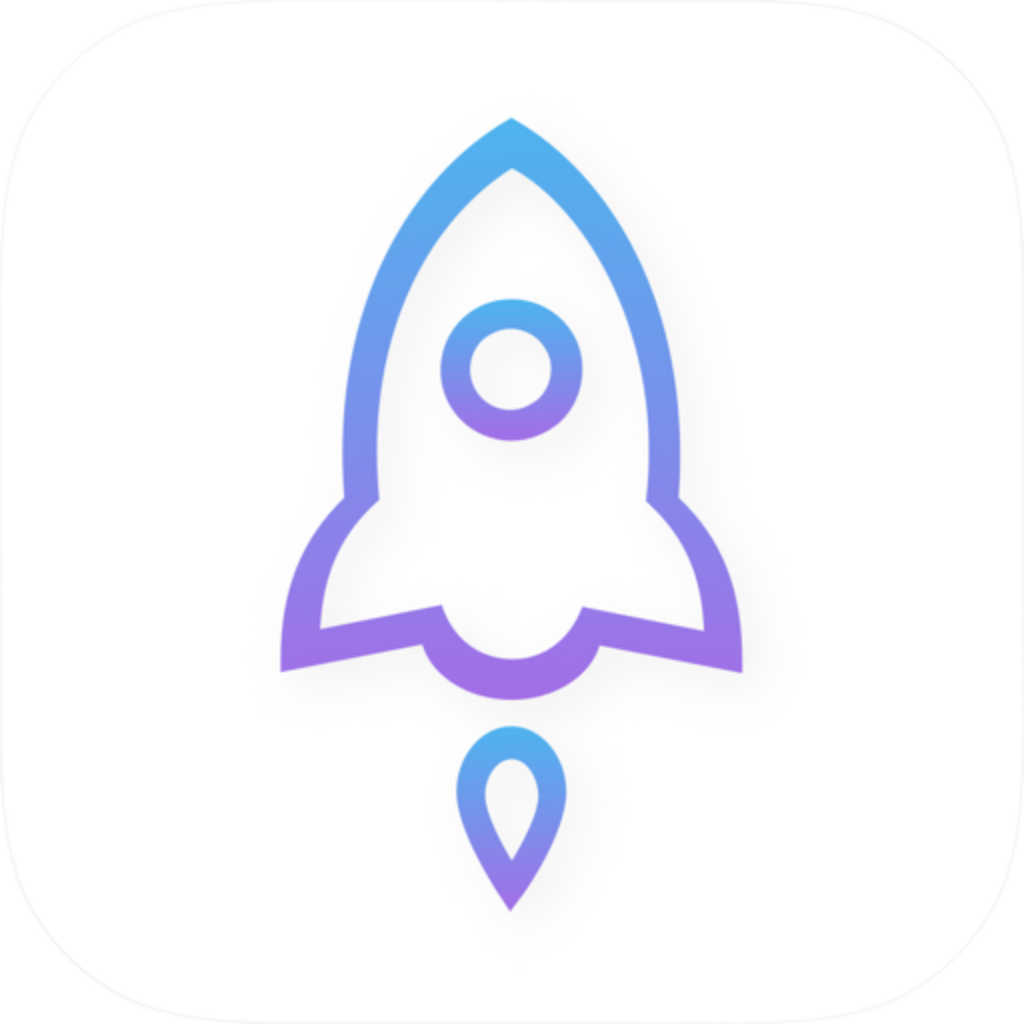
Shadowrocket’s official App Store icon: a blue-violet outlined rocket on a white background

Compare the App Store icon with the official icon shown here: a blue-violet outlined rocket on a white background. Use the icon as an additional clue, and verify the developer and app ID as well.

03 / APPLICATION ID

App ID

Shadowrocket’s app ID is 932747118. The product page URL contains id932747118. If you opened the page from search results, check that this number appears in the address.

Once all three details match, review the storefront price and compatibility. If anything doesn’t match, return to the product page linked above and check again.

APP STORE / OFFICIAL SCREENSHOTS

Compare with the App Store screenshots

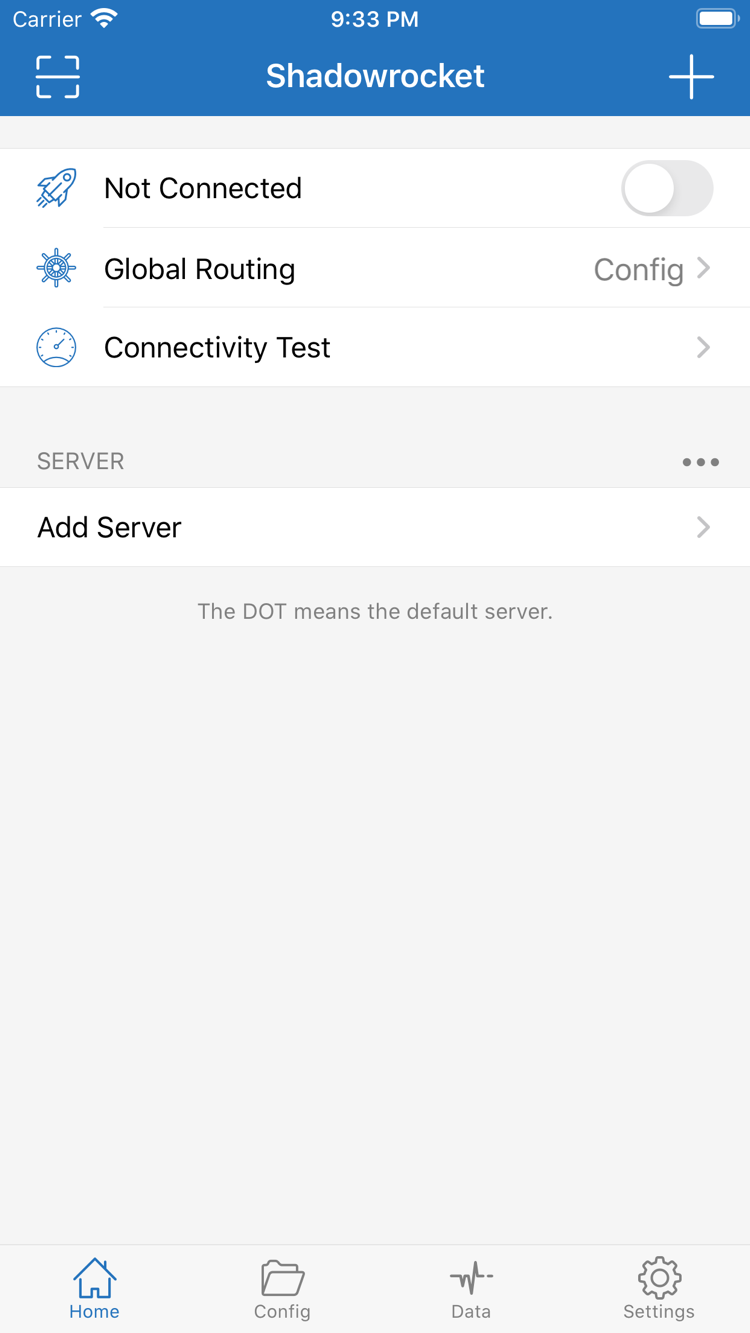
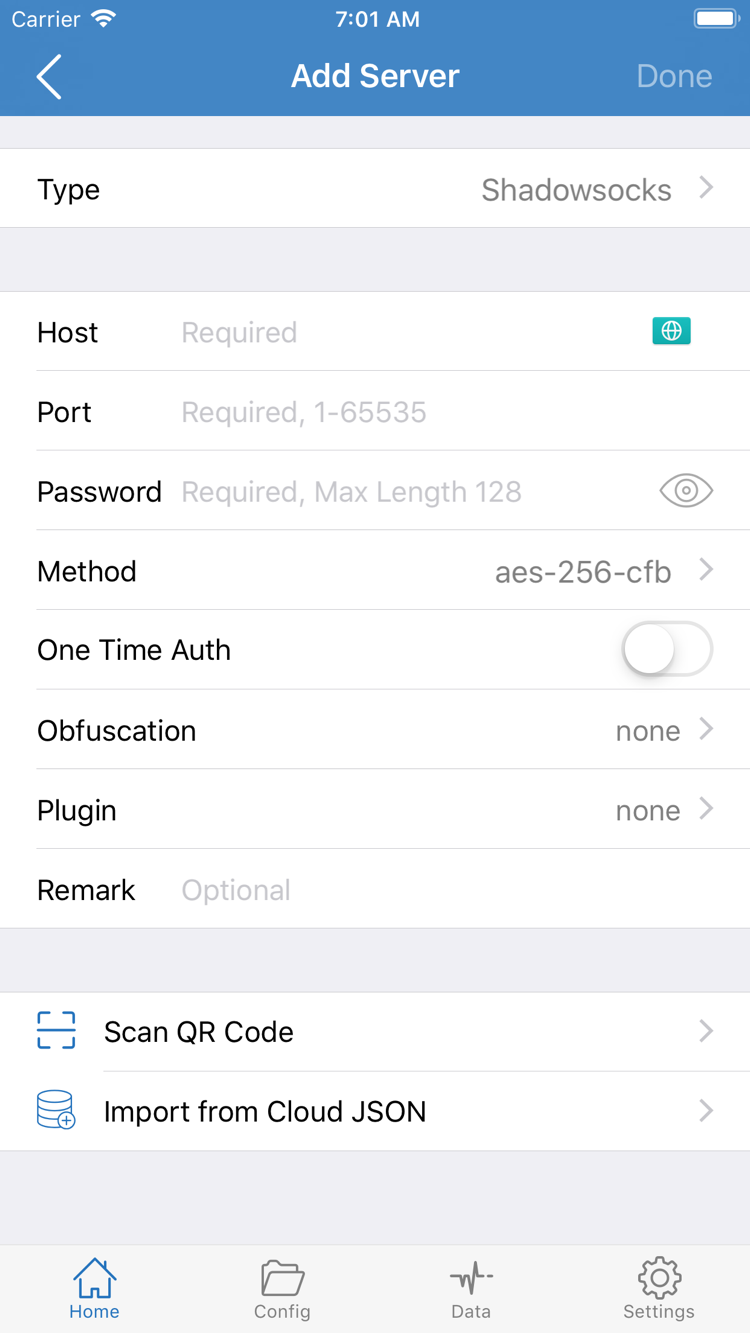
These two official Shadowrocket screenshots from the App Store help identify English interface labels in Home and Add Server. They show the app, but don’t replace checking the developer and app ID above.

HOME

Start with the Home screen

At the top of the Home screenshot, you’ll see the connection status and toggle, followed by Global Routing and Connectivity Test. Below are the SERVER section and Add Server. The app may look different depending on your device and settings, so use the English labels on your current screen to find controls.

ADD SERVER

Then check the Add Server fields

The Add Server screenshot shows fields such as Type, Host, Port, Password, and Method, along with Scan QR Code and Import from Cloud JSON. These options are used when importing existing server details; buying the app does not fill in this information automatically.

If you haven’t imported your own subscription or server details yet, it’s normal for the list to look different from the App Store screenshots. First verify the listing and purchase details on this page, then see the Quick Start Guide for the next steps.

DEVICES / FIRST OPEN

Install on iPhone and iPad

On your device, open the App Store with the same Apple ID you used to make the purchase. Check the product page’s compatibility section before installing. Refer to the App Store listing for system requirements.

01 / IPHONE

Install on iPhone

Open the App Store from the product link on this page. First verify the developer, icon, and app ID, then review the price and device requirements shown in the store. After confirming the purchase, follow the App Store prompts to pay and install. If you’ve already bought the app with the same Apple ID, look for Shadowrocket in your purchased items first. The button shown by the store is a better guide to your account’s current purchase status than your recollection of when you bought it.

When you first open the app, stay on Home and identify options such as Global Routing, SERVER, and Add Server. Before connecting, you’ll need to import a subscription or server details you already have. If a system prompt asks for permission to add a VPN configuration when you enable a connection, read the prompt before deciding whether to allow it. This is separate from purchasing the app.

If the install button isn’t available, check your App Store sign-in, available device storage, network connection, and compatibility notices separately. Not every installation issue is a payment problem. System requirements listed on the product page may change; refer to the App Store listing.

02 / IPAD

Install on iPad

Your iPhone and iPad can use purchases associated with the same Apple ID. On your iPad, sign in to the App Store with the account used for the purchase, then open the Shadowrocket product page or find it in your purchased items and install it using the button shown. If you see a payment confirmation prompt, stop and check that you’re using the same account. Being signed in to the same cloud service on both devices doesn’t necessarily mean the App Store uses the same purchase account.

The iPad’s wider screen may arrange the app differently from the iPhone screenshots. Look for English interface labels such as Home, Add Server, and Global Routing instead of tapping based on a screenshot’s pixel positions. You’ll still need to import your own subscription or server details; app purchase history and configuration data are separate.

The compatibility section of the same App Store listing also includes Mac, Apple TV, and Apple Vision. Don’t assume the iPhone or iPad installation steps apply to other devices. Check the App Store listing for supported devices, system requirements, and whether the purchase applies to the device.

PURCHASE HISTORY / RESTORE

Switch devices or reinstall

When switching iPhones, installing on an iPad, or reinstalling after deleting the app, first make sure the new device uses the same Apple ID as the one used for the purchase. Then open App Store → Account → Purchased and find Shadowrocket in your purchase history to download it again. A purchase already associated with the same account usually doesn’t require paying twice. If the product page still shows a price, check the account, its region, and the purchase history before paying again.

Purchased items show your App Store purchase history; they don’t include your personal app configuration. After installing Shadowrocket on a new device, you’ll need to import your own subscription or server details again. If you previously saved your Config, make sure you have a usable copy stored separately. Restoring the purchase alone won’t restore the SERVER list to its previous state.

If you can’t find a purchase, check a few common causes: the current device uses a different Apple ID for Media & Purchases; the account region changed on an older device; or the store is still loading account history. Follow the App Store prompts one by one rather than repeatedly tapping the purchase button. Family Sharing, purchase availability across devices, and system requirements may depend on App Store policies; refer to the App Store listing.

PRICE / SCOPE

Price and one-time purchase

Shadowrocket is a one-time app purchase: the US storefront lists it at about $2.99, with no monthly app fee. Other storefronts show prices in local currency. Refer to the App Store listing for the final price.

A one-time app purchase ≠ a service plan. You’re buying the Shadowrocket app, not server connection details. This site does not provide or sell nodes or subscriptions. The setup steps that follow are for users who already have their own subscription or server details.

Before buying, check the currency, price, compatibility, and payment confirmation for your current account in the App Store. Prices may vary by storefront; the US dollar amount shown here is for reference and may not match the amount on your payment confirmation screen. App updates are also delivered through the App Store. Check the product page for the latest listing details.

If you’d like to understand the setup process first, read the Quick Start Guide and Server Management Guide before deciding whether to buy. Purchasing the app, importing details, and enabling a connection are separate steps; completing one doesn’t mean the others are done.

QUESTIONS / APP STORE

Purchase and installation FAQs

First check your account and purchase history against the App Store prompts. These answers point you to what to check next.

Why can’t I find Shadowrocket in the App Store?

Your Apple ID country or region determines which store you see. Shadowrocket isn’t available in the China mainland storefront. Check your account region, then open the App Store product page linked on this site. See Apple’s guidance for whether your account region can be changed.

Why can’t I complete the download from the product page?

Check your account region, payment status, device compatibility, and network connection, then review the message shown by the App Store. Refer to the App Store listing for system requirements and current pricing.

Do I have to pay again when I switch to a new iPhone?

On your new device, use the Apple ID you bought Shadowrocket with and find it in your App Store account’s purchased items to download it again. If the store asks you to pay again, first check the signed-in account and its purchase history.

Can I install it on my iPad after buying it on iPhone?

Your iPhone and iPad can use purchases associated with the same Apple ID. On your iPad, check which account is signed in to the App Store and view your purchased items. Refer to the App Store listing for system requirements.

Can I install Shadowrocket on Mac or Apple TV?

The compatibility section of the same App Store listing includes Mac, Apple TV, and Apple Vision. Check the listing for supported devices, system requirements, and whether the purchase applies to the device.

How can I follow the guide if the app opens in English?

This guide uses the app’s English interface labels, such as Home, Add Server, and Global Routing. Use the official screenshots on this page to identify the screen, then look for the same labels in the Quick Start Guide.