Rule-based routing
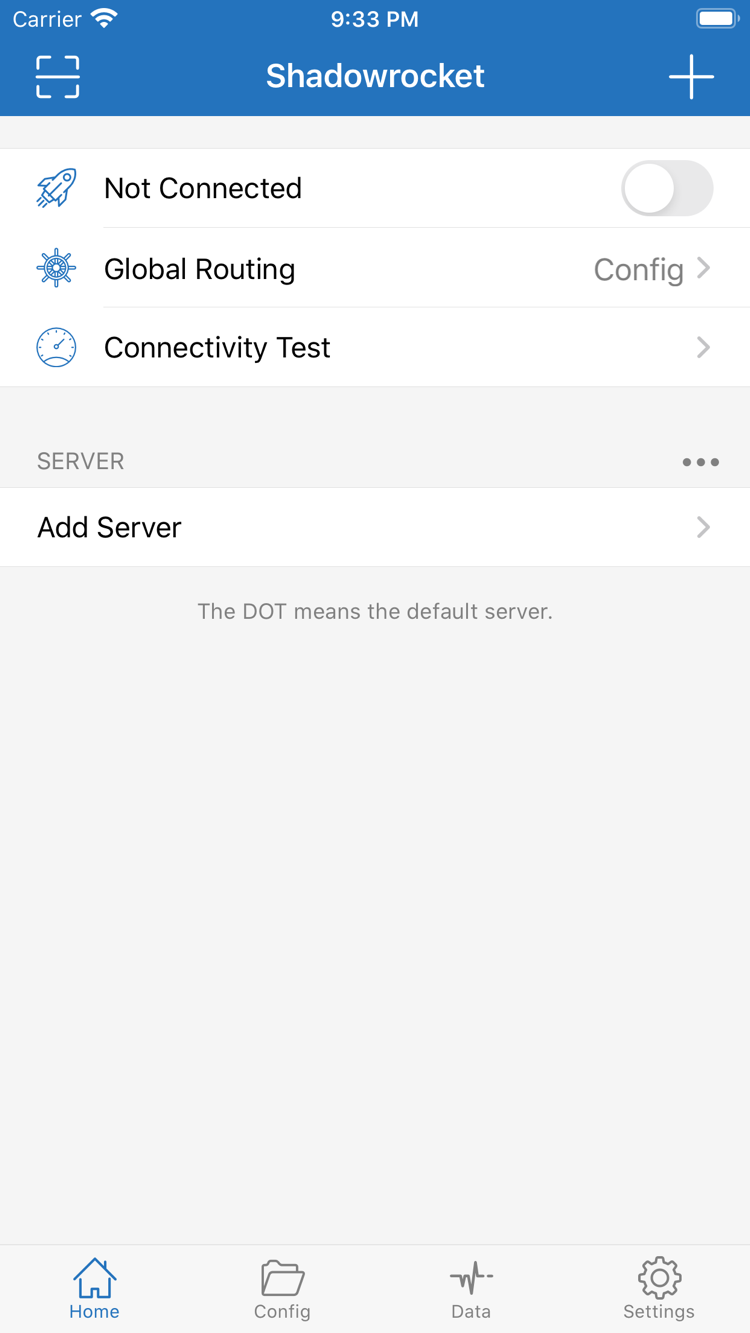
In Home, select Config under Global Routing to route requests according to the rules in the active configuration file. DOMAIN-SUFFIX matches a domain and its subdomains; IP-CIDR handles address ranges. Matching requests follow policies such as PROXY, DIRECT, or REJECT. Rule order affects the outcome, so check FINAL for requests that do not match another rule. If a site is routed unexpectedly, first confirm which Config is selected, then review its rules and policies. The connection toggle alone does not tell you whether routing is working as intended.
DOMAIN-SUFFIX,example.com,PROXY
IP-CIDR,192.168.0.0/16,DIRECT
DOMAIN,blocked.example.com,REJECT
FINAL,PROXY
On Demand
On Demand, in Settings, uses configured network conditions to determine when to connect. It can help maintain a consistent connection behavior as networks change, but it does not replace server details or routing rules. For initial setup, connect manually from Home and verify that your existing server works before enabling On Demand. If behavior changes unexpectedly when you switch networks, temporarily turn it off and check the regular connection, network conditions, and selected Global Routing mode separately. This helps distinguish trigger issues from server problems.
Settings → On Demand
Home → Global Routing → Config
Multiple protocols
When choosing Type in Add Server, use the details for your existing server rather than guessing from the protocol name. Shadowrocket supports configurations for Shadowsocks, VMess, VLESS, Trojan, WireGuard, and other types. Each Type can require different Host, Port, credentials, and additional fields. If a manually entered server will not connect, compare each field with the original details, paying particular attention to the protocol type and field mapping. A protocol name describes the configuration format; it does not by itself confirm that a server is currently available.
Shadowsocks · VMess · VLESS
Trojan · WireGuard
Importing a Subscribe link
If you already have your own subscription link, add it in Subscribe, update it, and check the server list. A successful import only means the link content was read; it does not guarantee that every server in the list can connect. If the list is empty, check that the link is complete, its format is recognized, and the source still returns valid content. Give each subscription a recognizable name to avoid confusion when updating. This guide explains importing and organizing configurations; it does not provide subscription content.
Subscribe → Add → Update
SERVER → Select an existing entry
Config files
Config organizes settings such as rules and DNS. Before editing, check which file is selected in Home; changes to an inactive Config will not affect connection behavior. After adding rules such as DOMAIN-SUFFIX or IP-CIDR, review their order and where unmatched requests go via FINAL. To compare two routing setups, keep separate configurations and test them one at a time. This makes differences easier to identify than changing several conditions at once. Managing Config files and importing servers are related but separate steps.
Config → Rule
DOMAIN-SUFFIX,example.com,PROXY
Diagnostics
Once the connection toggle is on, use Connectivity Test and the Diagnostics and Data sections in Settings to check what is happening. Test results reflect network conditions at the time of the test and do not replace checking the request in question. Data can help show whether traffic is passing through the app. If a test fails, troubleshoot in this order: current network, server details, selected server, Global Routing, and Config rules. Change one thing at a time and test again to pinpoint whether the issue is with the connection or a rule match.
Connectivity Test
Settings → Diagnostics
Data